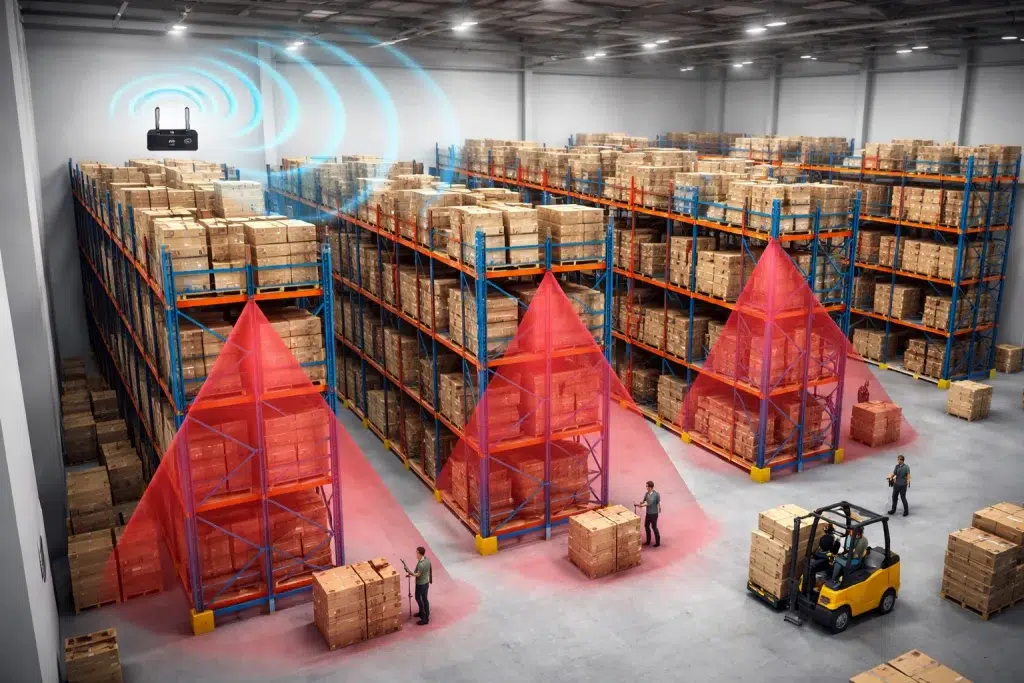
Warehouse Racking Impact on WiFi Signal Propagation
Warehouse racking WiFi performance is rarely “just an access point problem.” In most facilities, the racking system is the biggest physical factor shaping coverage, roaming, and reliability. In this guide, we explain how metal shelving WiFi issues happen, how warehouse obstacles wireless behavior changes as inventory moves, and what corrective steps IT teams can take to keep scanners and tablets stable.
This article uses plain language and short sentences. It also includes real-world technician scenarios, common installation errors tied to TIA/EIA structured cabling practices, and practical fixes you can apply during planning, upgrades, or troubleshooting.
Warehouse Racking WiFi Basics: Why Racks Change Signal Propagation
WiFi is radio. Radio waves do not travel through warehouses the way they travel through open office space. Therefore, racking changes WiFi in three main ways: it blocks, it reflects, and it creates “RF corridors.”
Metal Shelving WiFi Effect: Attenuation (Blocking)
Metal is a strong blocker for WiFi. Even when there are gaps, the rack structure and stored items can weaken the signal. As a result, you can see strong coverage in one aisle and a dead zone in the next.
Warehouse Obstacles Wireless Effect: Reflection and Multipath
Metal reflects RF energy. Therefore, signals can bounce and arrive at the device at slightly different times. This is called multipath. Modern WiFi can handle some multipath. However, in dense racking, it can still cause retries and unstable performance.
Warehouse Racking WiFi Effect: RF Corridors
Long aisles act like tunnels. Therefore, signal can travel far down an aisle but not cross into the next aisle. This is why “it works in Aisle 1 but fails in Aisle 2” is such a common complaint.
Metal Shelving WiFi: How Inventory Type Changes Coverage
Racks are not the only issue. What you store on the racks matters too. Therefore, two warehouses with the same racking can have very different WiFi behavior.
Warehouse Obstacles Wireless: High-Water-Content Inventory
Products with water content absorb RF energy. For example, beverages, some foods, and many consumer goods can reduce signal strength. As a result, a design that worked when racks were half full may fail when inventory is at peak.
Corrective step: validate WiFi during normal operations and typical inventory levels, not during an empty season.
Metal Shelving WiFi: Pallets, Wrap, and Seasonal Density
Pallet stacks and shrink wrap change reflections and absorption. Therefore, seasonal inventory spikes can create new dead zones.
Corrective step: build in margin. Do not design to the minimum signal level if you expect big inventory swings.
Real-world technician scenario: “The WiFi was fine until Q4”
An IT tech gets tickets every holiday season. The layout is the same, but inventory is denser. The corrective step is to re-validate with a survey during peak density and adjust AP placement and power to match the new RF reality.
Warehouse Racking WiFi vs Frequency: 2.4 GHz and 5 GHz Behave Differently
Frequency matters. Therefore, racking impacts 2.4 GHz and 5 GHz differently.
Warehouse Obstacles Wireless: 2.4 GHz Penetrates More, But Has More Noise
2.4 GHz can travel farther and sometimes penetrate obstacles better. However, it is also more crowded. As a result, you can get interference from Bluetooth, microwaves, and nearby networks.
Metal Shelving WiFi: 5 GHz Has More Capacity, But Shorter Reach
5 GHz usually performs better for capacity and speed. However, it is more affected by obstacles and distance. Therefore, in high-bay racking, you often need more careful AP placement for consistent 5 GHz coverage.
Corrective step: Avoid “all-auto” designs in dense racking
Auto power and auto channel can work in simple spaces. However, racking-heavy warehouses often need a tuned plan to prevent overlap and roaming failures.
Internal linking suggestion: Link this section to your “Industrial WiFi vs Standard WiFi” article and your “RF Interference in Warehouses” guide.
Warehouse Racking WiFi Mounting Strategies That Actually Work
Mounting is where many warehouse WiFi projects succeed or fail. Therefore, it helps to understand the trade-offs.
Warehouse Racking WiFi Strategy: High Mount (Ceiling / Truss)
High mounting can reduce obstructions in some layouts. However, in high-bay racking, a ceiling-mounted AP may “see” the tops of racks but not the device level in the aisles. As a result, scanners can still drop.
Corrective steps:
- Validate at device height, not just “looks good on a heatmap”
- Use directional antennas where appropriate to shape coverage down aisles
- Plan safe service access (lifts, catwalks, maintenance windows)
Metal Shelving WiFi Strategy: Mid-Aisle Mount (End-of-Aisle or Cross-Aisle)
Mounting at aisle ends or cross-aisles can improve device-level coverage. Therefore, many warehouse designs use APs positioned to “shoot down” aisles.
Corrective step: avoid placing APs directly behind metal end caps or large signage that blocks the main lobe.
Warehouse Obstacles Wireless Strategy: Side-Mounting on Columns
Column mounts can work well because they reduce the “top-down” blockage problem. However, they must be protected from impact and placed where forklifts will not hit them.
Corrective step: use protective cages and plan cable routes that do not create trip hazards.
Warehouse Obstacles Wireless: Why Aisle Turns and Cross-Aisles Cause Drops
Many roaming failures happen at turns. Therefore, you should treat aisle turns as design points, not afterthoughts.
Warehouse Racking WiFi Roaming Issue: Sharp Coverage Boundaries
Racks create strong boundaries. As a result, a device can go from strong signal to weak signal in a few steps. This can trigger slow roaming decisions and session drops.
Corrective steps:
- Design for controlled overlap at turns and cross-aisles
- Tune transmit power so one AP does not “dominate” multiple aisles
- Validate roaming using the real scanner model and application
Real-world technician scenario: “The scanner works until the picker turns the corner”
The heatmap shows good coverage down each aisle. However, the turn is a weak spot. The corrective step is to add or reposition an AP to cover the turn, then re-test roaming during real movement.
TIA/EIA Installation Errors That Make Warehouse Racking WiFi Worse
Warehouse WiFi is not only RF. The wired layer matters. TIA/EIA structured cabling practices focus on labeling, documentation, and testability. When those basics are missing, WiFi troubleshooting becomes slow and expensive.
Warehouse Racking WiFi Problem: Unlabeled AP Drops in High-Bay Areas
Technicians often find AP cables that disappear into cable trays with no labels. As a result, an AP swap or relocation becomes a tracing project.
Corrective steps:
- Label both ends of every AP run
- Maintain port maps by aisle zone
- Keep diagrams updated after layout changes
Metal Shelving WiFi Problem: Poor Terminations and Untested Runs
In warehouses, vibration and movement can stress cabling. If a termination is marginal, the AP may flap under load. That looks like RF instability.
Corrective steps:
- Certify critical runs (especially long runs feeding high-bay APs)
- Replace suspect patch cords and re-terminate if needed
- Check PoE budgets and switch port errors
Warehouse Obstacles Wireless Mistake: APs Powered by Random Injectors
Injectors can be fine in small installs. However, in warehouses, they often get unplugged or swapped. Therefore, PoE switching with documented ports is usually more stable.
Corrective step: standardize AP power and document it.
Warehouse Racking WiFi Survey Tips: How to Measure the Real Impact
Because racking changes RF so much, you should validate with real measurements. Therefore, surveys are not optional in high-density racking environments.
Wireless Coverage Mapping for Warehouse Obstacles Wireless Behavior
Heatmaps help you see aisle corridor effects and cross-aisle gaps. However, the survey must be done at device height and during normal operations for best accuracy.
Corrective step: measure at scanner height and validate at turns.
Signal Strength Analysis for Metal Shelving WiFi Zones
Do not rely on RSSI alone. In racking-heavy zones, SNR and retries often tell the real story.
Corrective step: request SNR and utilization maps in addition to RSSI maps.
Internal linking suggestion: Link this section to your “Warehouse WiFi Heatmap Analysis Explained” and “Cost of Professional Warehouse WiFi Surveys in 2026” articles.
Warehouse Racking WiFi Corrective Steps: Practical Fixes That Reduce Dead Zones
There is no single fix for every warehouse. However, these corrective steps are common and effective when racking is the main obstacle.
Corrective Step: Reposition APs to Cover Turns and Cross-Aisles
Many designs cover aisles but miss the turns. Therefore, small placement changes can improve roaming stability.
Corrective Step: Use Directional Coverage Where Needed
Directional antennas can focus energy down aisles. As a result, you can reduce wasted overlap and improve SNR in the working zone.
Corrective Step: Tune Transmit Power and Channel Plans
More power is not always better. In fact, high power can cause sticky clients and poor roaming. Therefore, power tuning is often required in dense racking.
Corrective Step: Validate With Real Devices and Real Movement
Warehouses are dynamic. Therefore, validate with scanners, tablets, and forklifts during normal movement patterns.
Warehouse Obstacles Wireless Planning: Future-Proofing for Layout Changes
Racking layouts change. Inventory changes. Workflows change. Therefore, the best warehouse WiFi designs include a plan for change.
Warehouse Racking WiFi Planning Tip: Treat Layout Changes as “RF Changes”
When racking is moved, RF changes. Therefore, create a simple process: when layout changes exceed a threshold, schedule a mini re-survey.
Metal Shelving WiFi Planning Tip: Keep Documentation Updated (TIA/EIA Mindset)
Documentation is not busywork. It reduces downtime. Therefore, keep AP maps, port maps, and VLAN notes updated.
Real-world technician scenario: “They moved racking and broke roaming”
A warehouse expands and adds new rows. The WiFi used to work. Now scanners drop at the new cross-aisle. The corrective step is to re-check coverage boundaries and adjust AP placement and power to match the new corridor behavior.
Conclusion: Warehouse Racking WiFi Is a Design Constraint, Not a Surprise
Warehouse racking WiFi issues are predictable when you understand how racks block, reflect, and tunnel RF energy. Metal shelving WiFi challenges and warehouse obstacles wireless behavior are not solved by “adding more APs” alone. Instead, the best results come from smart placement, tuned power and channels, real device validation, and strong TIA/EIA-style cabling discipline.
If you want stable roaming and fewer dead zones, treat racking as the main variable and measure it with a proper survey.
Schedule Your Free Warehouse Racking WiFi Review
Contact UniFi Nerds for a comprehensive warehouse racking WiFi review and network assessment. We’re available 24/7 to explain metal shelving WiFi behavior, warehouse obstacles wireless challenges, and the corrective steps that stabilize scanners and roaming.
Call: 833-469-6373 or 516-606-3774 | Text: 516-606-3774 or 772-200-2600
Email: hello@unifinerds.com | Visit: unifinerds.com
Free consultations • Phased implementation • Budget-friendly • Warehouse-ready design • 24/7 support