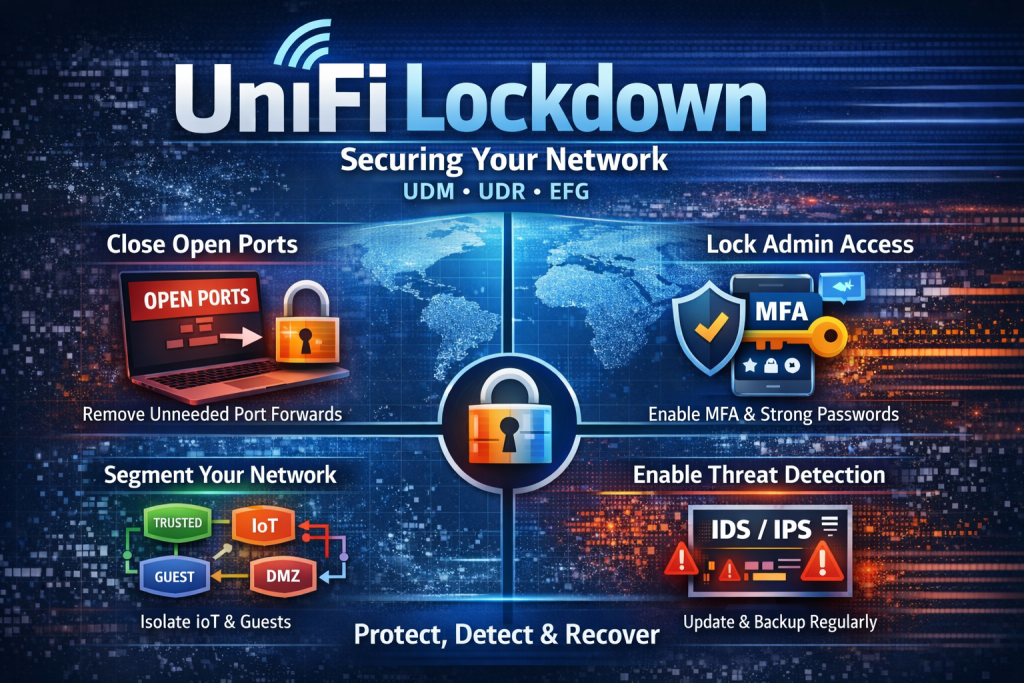
Securing Your UniFi Network Against External Threats: A Practical Guide for UDM, UDR & EFG Owners
The current geopolitical landscape has put cybersecurity front and center for businesses and homeowners alike. Following the February/March 2026 escalation between the U.S., Israel, and Iran — including coordinated military strikes and retaliatory missile attacks — federal agencies including CISA, the FBI, and the NSA have issued urgent advisories warning of heightened cyber threats targeting U.S. networks. Iranian state-sponsored actors and affiliated hacktivist groups have a well-documented history of targeting poorly secured American networks, and the threat environment is now more active than it has been in years.
The good news? If you’re running a UniFi Dream Machine (UDM), UniFi Dream Router (UDR), or UniFi Express/Enterprise Fortress Gateway (EFG), you already have a powerful set of security tools at your disposal. Most people just aren’t using them. This guide will walk you through every critical security setting you should enable and configure — today — to harden your network against external threats.
Understanding the Current Threat Landscape
Before we dive into configurations, it’s important to understand what we’re defending against. According to CISA and multiple cybersecurity firms, Iranian-affiliated cyber actors employ a range of tactics including:
Credential-based attacks — including brute force login attempts and MFA push-bombing, where attackers flood users with authentication requests hoping someone will accidentally approve one.
Exploitation of internet-facing devices — routers, firewalls, cameras, and IoT devices with default passwords or unpatched firmware are prime targets. Iranian-linked groups compromised U.S. water utilities in 2023 by exploiting exactly this kind of vulnerable, internet-connected equipment.
Phishing and spear phishing — targeted emails designed to trick employees into giving up credentials or installing malware.
DDoS attacks — flooding your network with traffic to knock services offline. Hacktivist groups aligned with Iran frequently use this tactic to disrupt operations and generate fear.
Living-off-the-land techniques — once inside a network, attackers use legitimate administrative tools already present on systems to move laterally and maintain access while evading detection.
The bottom line: these threat actors actively scan for low-hanging fruit. An improperly secured gateway, a default password left in place, or an unnecessary port left open is an invitation. Let’s close those doors.
Step 1: Update Your Firmware — Immediately
This is non-negotiable. Before you touch a single setting, make sure your UDM, UDR, or EFG is running the latest stable firmware.
Ubiquiti regularly patches security vulnerabilities, and running outdated firmware is one of the most common ways networks get compromised. Iranian APT groups are known to exploit known vulnerabilities in network equipment — vulnerabilities that often have patches available that simply haven’t been applied.
How to update:
- Open your UniFi Network application (local or via unifi.ui.com).
- Navigate to Settings → System.
- Check for available firmware updates and apply them.
- Enable Auto Update if you’re comfortable with it, or set a maintenance window so updates are applied during off-hours.
Pro tip: Don’t forget your UniFi switches and access points. Every device on your network should be running current firmware. A compromised switch or AP can be a pivot point into your broader network.
Step 2: Secure Your Admin Access
Your UniFi gateway is the front door to your entire network. If an attacker gets admin access, it’s game over.
Enable Two-Factor Authentication (2FA)
If you haven’t done this yet, stop reading and do it right now. Go to your Ubiquiti SSO account at account.ui.com, navigate to security settings, and enable 2FA. Use an authenticator app (Google Authenticator, Authy, or Microsoft Authenticator) — not SMS-based 2FA, which is vulnerable to SIM-swapping attacks.
Use a Strong, Unique Password
Your UI.com account password should be long (16+ characters), random, and unique. Do not reuse passwords from other services. Use a password manager.
Disable Local Admin Access (or Secure It)
If you’re managing your network through UniFi Cloud (unifi.ui.com), consider whether you need local dashboard access enabled. If you do, make sure:
- The local admin password is strong and different from your cloud credentials.
- You’re accessing the local dashboard over HTTPS only.
- You’ve restricted local management access to a specific VLAN or management network (covered below).
Disable Remote Management via SSH
Unless you’re actively using it for troubleshooting, disable SSH access to your gateway. SSH with weak or default credentials is one of the most common entry points for automated attacks.
Navigate to Settings → System → Advanced and disable SSH access, or at a minimum, change the default port and use key-based authentication.
Step 3: Configure Your Firewall Rules
Out of the box, UniFi gateways provide basic firewall protection, but the default configuration leaves room for improvement. Here’s what to lock down:
Internet Inbound Rules (WAN → LAN)
By default, your UDM/UDR/EFG blocks unsolicited inbound traffic. Do not create port forwarding rules unless absolutely necessary. Every forwarded port is a potential attack surface.
If you must port forward (for example, for a security camera NVR or a hosted service):
- Forward only the specific ports needed — never use a DMZ host or forward “all ports.”
- Restrict the source IP range if possible (e.g., only allow connections from your office IP).
- Place the forwarded device on an isolated VLAN so that even if compromised, the attacker can’t reach the rest of your network.
Create Explicit Deny Rules
While the default firewall blocks most unsolicited inbound traffic, it’s good practice to create explicit deny rules for traffic originating from known threat regions. You can use GeoIP filtering (covered in the next section) to accomplish this more efficiently, but you can also create manual firewall rules that block specific IP ranges associated with threat actors.
Inter-VLAN Firewall Rules
If you’ve segmented your network with VLANs (which you should — see Step 5), create firewall rules that prevent IoT devices, guest networks, and other untrusted segments from communicating with your trusted/management networks. The goal is to ensure that even if an attacker compromises a smart thermostat or IP camera, they can’t pivot to your workstations or servers.
Step 4: Enable Threat Management (IDS/IPS)
This is one of the most powerful and underutilized features on UniFi gateways. The Intrusion Detection System (IDS) and Intrusion Prevention System (IPS) analyze traffic in real time and can automatically block known malicious activity.
How to enable:
- Go to Settings → Security → Threat Management.
- Enable Threat Management and set it to IPS mode (not just IDS). IDS only detects — IPS actively blocks.
- Set the sensitivity level. For most environments during a heightened threat period, we recommend Level 5 (maximum) or at minimum Level 4. Yes, this may slightly increase latency — but the protection is worth it.
What IPS catches:
- Known exploit attempts and malware signatures
- Port scanning and reconnaissance activity
- Command and control (C2) communication from compromised devices trying to “phone home”
- Brute force login attempts
Internal Honeypot
If your firmware version supports it, enable the Internal Honeypot feature under Threat Management. This creates decoy services on your network that no legitimate device should ever contact. If something touches the honeypot, you know you have a compromised device.
Step 5: Enable GeoIP Filtering
GeoIP filtering allows you to block all traffic originating from — or destined to — specific countries. Given the current threat environment, this is one of the most impactful steps you can take.
How to configure:
- Navigate to Settings → Security → Threat Management → GeoIP Filtering.
- Block traffic from countries where you have no legitimate business connections. At a minimum during this threat period, consider blocking:
- Iran
- Iraq
- Vietnam
- North Korea
- Russia
- China (evaluate based on your business needs)
- Apply the filter to both inbound and outbound traffic. Blocking outbound traffic is critical because if a device on your network is compromised, it may try to communicate with command-and-control servers hosted in these regions.
Important note: GeoIP filtering is not foolproof. Sophisticated attackers use VPNs, proxies, and compromised infrastructure in other countries to route their traffic. GeoIP is one layer of defense — not your only one. Think of it as reducing your attack surface significantly while recognizing that determined adversaries can work around it.
Step 6: Segment Your Network with VLANs
Network segmentation is one of the most effective defenses against lateral movement — the technique where an attacker who compromises one device uses it as a jumping-off point to attack others on the same network.
If everything on your network is on a single flat subnet, a compromised IP camera or smart plug can potentially reach your financial data, email, and business-critical systems.
Recommended VLAN Structure
| VLAN | Purpose | Example Devices |
|---|---|---|
| Management | Network infrastructure admin | UniFi Controller, switches, APs |
| Trusted/Corporate | Primary workstations and servers | Desktops, laptops, file servers |
| IoT | Smart devices and automation | Cameras, thermostats, smart speakers |
| Guest | Visitor internet access | Client devices, waiting room WiFi |
| Security/Cameras | Surveillance and access control | UniFi Protect cameras, NVR, UniFi Access |
How to Create VLANs
- Go to Settings → Networks.
- Create a new network for each segment.
- Assign a unique VLAN ID and subnet to each.
- Apply the appropriate network to your WiFi SSIDs and switch ports.
Firewall Rules Between VLANs
After creating your VLANs, configure inter-VLAN firewall rules:
- Block IoT → Trusted: IoT devices should not be able to initiate connections to your corporate network.
- Block Guest → Everything: The guest network should only have internet access, nothing else.
- Allow Trusted → IoT (selectively): Your workstations may need to manage IoT devices, but restrict this to specific ports and protocols.
- Restrict Management VLAN: Only allow access from specific trusted devices.
Step 7: Lock Down DNS
DNS is a frequently overlooked attack vector. Malicious DNS can redirect your traffic to phishing sites or exfiltrate data. Iranian threat actors have been documented using DNS manipulation in their campaigns.
Force All DNS Through Your Gateway
Create a firewall rule that redirects all DNS traffic (port 53, both TCP and UDP) on your network to your gateway. This prevents devices from using hard-coded DNS servers that bypass your security controls.
Some IoT devices (particularly those from Google and Amazon) hard-code their own DNS servers. Without this rule, those devices bypass whatever DNS protections you’ve configured.
Use a Secure DNS Provider
Configure your gateway to use a reputable DNS provider with built-in threat protection:
- Cloudflare for Families (1.1.1.3) — blocks malware and adult content
- Quad9 (9.9.9.9) — blocks known malicious domains using threat intelligence feeds
- Cisco Umbrella / OpenDNS (208.67.222.222) — enterprise-grade DNS security
Navigate to Settings → Networks → (select your network) → DHCP and set your preferred DNS servers.
Enable DNS Shield (Content Filtering)
If your UniFi gateway supports it, enable the built-in Content Filtering or DNS Shield feature under Settings → Security. This provides an additional layer of DNS-based protection against known malicious domains.
Step 8: Secure Your Wireless Networks
Your WiFi networks are a potential entry point if not properly configured.
Use WPA3 (or WPA2/WPA3 Transitional)
If your devices support it, enable WPA3 for the strongest wireless encryption. For networks with older devices that don’t support WPA3, use WPA2/WPA3 transitional mode.
Navigate to Settings → WiFi → (select your SSID) → Security and select the appropriate protocol.
Use Strong WiFi Passwords
Your WiFi password should be long and complex — at least 16 characters. Change it from any default or commonly known password.
Disable Unused SSIDs
If you have SSIDs that aren’t actively being used, disable them. Every active SSID is a potential attack surface.
Enable PMF (Protected Management Frames)
PMF protects against deauthentication attacks, where an attacker forces devices off your network to capture credentials during reconnection. This is enabled by default with WPA3 but should be explicitly enabled if using WPA2.
Hide Your Management SSID
Consider hiding the SSID for your management or trusted network. While this isn’t true security (a determined attacker can still find hidden networks), it reduces casual discovery.
Step 9: Review and Harden Additional Services
Disable UPnP
Universal Plug and Play (UPnP) allows devices to automatically open ports on your firewall. This is a massive security risk. Malware frequently uses UPnP to open backdoor connections.
Navigate to Settings → Security → Advanced (or under your WAN network settings) and disable UPnP.
Disable SNMP (or Restrict It)
If you’re not actively using SNMP for network monitoring, disable it. If you need it, use SNMPv3 (which supports authentication and encryption) and restrict access to your management VLAN only.
Review Port Forwarding Rules
Audit every port forwarding rule currently configured on your gateway. Remove any that are no longer needed. For those that remain, verify they use the minimum necessary ports and restrict source IPs where possible.
Disable WAN Ping Response
There’s no reason your gateway needs to respond to ping requests from the internet. Responding to pings confirms your IP address is active and invites further probing.
Navigate to your WAN network settings and disable ICMP response.
Step 10: Monitor Your Network Actively
Security isn’t a set-it-and-forget-it exercise. Active monitoring is essential, especially during periods of heightened threat activity.
Review Threat Management Alerts
Check your Threat Management dashboard regularly. Look for:
- Repeated blocked intrusion attempts from specific IP ranges.
- Any alerts involving internal devices communicating with known malicious IPs.
- Unusual traffic patterns, especially during off-hours.
Monitor Client Activity
Under the Clients section of your UniFi dashboard, review connected devices regularly. Look for:
- Unknown or unauthorized devices.
- Devices communicating unusual volumes of data.
- Devices connecting to unexpected networks or VLANs.
Enable Notifications
Configure email or push notifications for critical security events so you’re alerted in real time to potential threats.
Log Retention
Ensure your gateway is retaining logs for a sufficient period. In the event of an incident, these logs are essential for forensic analysis and understanding what happened.
Step 11: Protect Your Physical Hardware
Cybersecurity isn’t just digital. Physical access to your network equipment can bypass every software protection you’ve configured.
- Keep your UDM/UDR/EFG and switches in a locked network closet or server room.
- If using UniFi Access, ensure your door access controllers are on an isolated VLAN.
- Disable unused Ethernet ports on switches (or assign them to an isolated/quarantine VLAN).
- Secure your console port — physical console access to a UniFi gateway can reset the device.
Step 12: Have a Response Plan
Even with every protection enabled, no network is 100% immune. Having a response plan ready means the difference between a contained incident and a catastrophe.
Your basic incident response checklist:
- Identify — Know what normal traffic looks like so you can spot anomalies. Your Threat Management dashboard and traffic analytics are your primary tools.
- Contain — If you identify a compromised device, isolate it immediately. Move it to a quarantine VLAN or disconnect it entirely. Do not power it off — forensic evidence may be needed.
- Eradicate — Determine how the compromise occurred. Was it an unpatched vulnerability? A phished credential? A default password? Fix the root cause before bringing the device back online.
- Recover — Restore from known-good backups. Change all relevant credentials. Verify the integrity of your network configuration.
- Report — If you’re a business and you’ve been targeted by a state-sponsored actor, report it. Contact CISA at cisa.gov/report, and file a report with the FBI’s IC3 at ic3.gov.
Quick-Reference Hardening Checklist
Use this checklist to verify you’ve covered every critical step:
- [ ] Firmware updated to latest stable version on ALL devices
- [ ] 2FA enabled on UI.com account (using authenticator app, not SMS)
- [ ] Strong, unique passwords for all admin accounts
- [ ] SSH disabled or secured with key-based authentication
- [ ] Threat Management enabled in IPS mode (Level 4 or 5)
- [ ] GeoIP filtering enabled (Iran, North Korea, Russia at minimum)
- [ ] Network segmented with VLANs (Trusted, IoT, Guest, Cameras, Management)
- [ ] Inter-VLAN firewall rules blocking lateral movement
- [ ] DNS forced through gateway; secure DNS provider configured
- [ ] WPA3 or WPA2/WPA3 transitional enabled on all SSIDs
- [ ] UPnP disabled
- [ ] All unnecessary port forwarding rules removed
- [ ] WAN ping response disabled
- [ ] Internal honeypot enabled (if supported)
- [ ] Network monitoring and alerts configured
- [ ] Physical hardware secured in locked location
- [ ] Incident response plan documented and accessible
Final Thoughts
The cyber threat from state-sponsored actors — including those affiliated with Iran — is real, but it’s not something to panic about. It’s something to prepare for. The vast majority of successful cyberattacks exploit basic security failures: default passwords, unpatched firmware, flat networks with no segmentation, and unnecessary services left exposed to the internet.
Your UniFi gear gives you professional-grade security tools. Use them.
If you need help implementing any of these recommendations, our team at The UniFi Nerds is available for remote and on-site security hardening engagements nationwide. We specialize in UniFi infrastructure and can have your network locked down quickly and correctly.
Contact us: 📞 772-200-2600 | 516-606-3774 🌐 unifinerds.com
This article is provided for informational purposes and reflects the threat landscape as of early March 2026. Threat conditions change rapidly — always refer to CISA.gov for the latest advisories and guidance.