

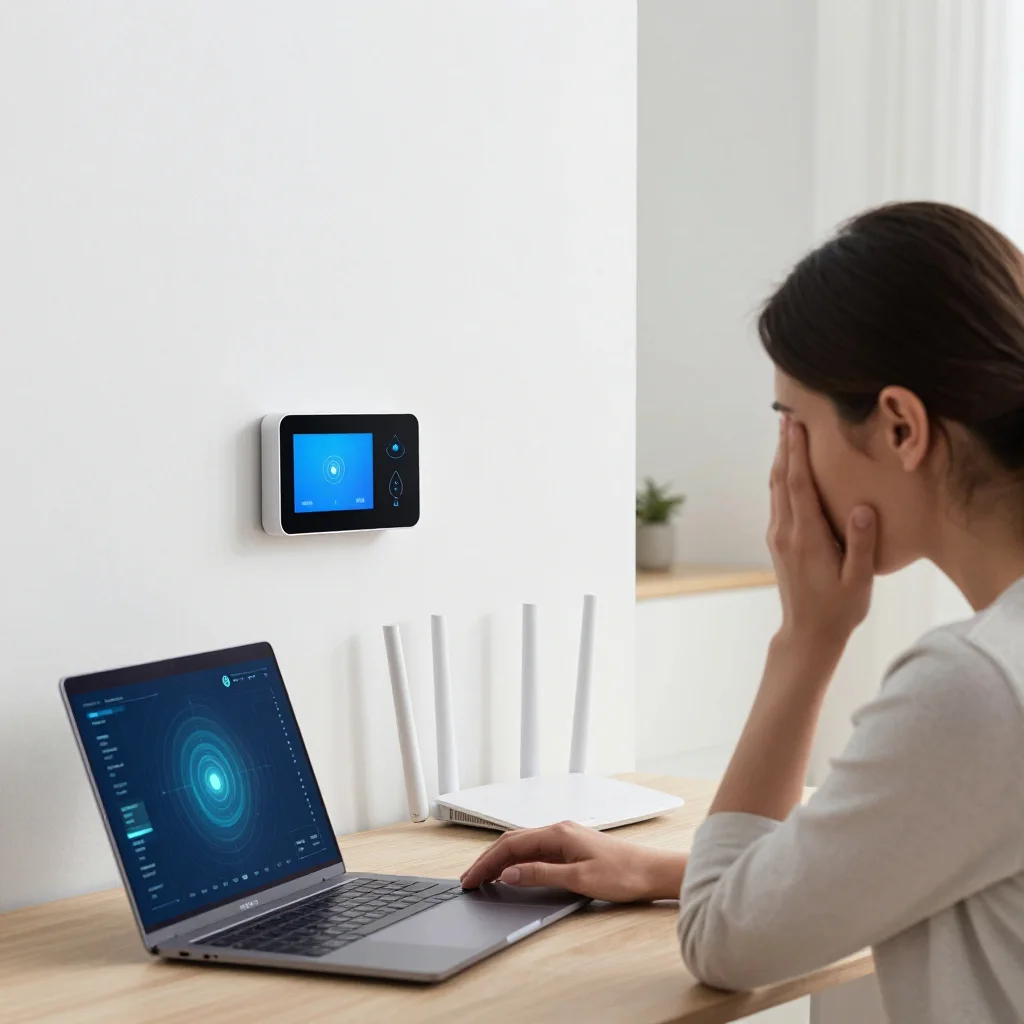
WiFi Dead Zones: 9 Causes That Aren’t Bad Internet (and How to Fix Them)
You pay for fast internet, but your video calls still drop in the back bedroom. Your smart TV buffers in the living room. Your office WiFi is “fine” near the router, but unusable in the conference room. These are classic wifi dead zones, and they are often blamed on the ISP. However, most dead zones are caused by WiFi design problems inside the building. This guide explains the most common reasons WiFi coverage fails, the real wifi interference causes, and exactly how to fix wifi dead spots using better access point placement and a simple wifi site survey approach.
This is written for homeowners, apartment residents, remote workers, gamers, smart home users, small business owners, IT managers, and office operators who want practical, repeatable fixes.
First: what a “WiFi dead zone” really is
A dead zone is not always “no signal.” Sometimes you have signal bars, but the connection is unstable or slow. Therefore, it helps to separate coverage problems from internet problems.
Common dead zone symptoms
- Strong signal, but slow speeds or buffering
- Video calls freeze when you move to certain rooms
- Smart home devices go offline randomly
- Gaming latency spikes in one area of the home or office
- WiFi works, but “No Internet” appears occasionally
Tips: 3 quick checks before you buy new gear
- Run a speed test next to the router, then in the “dead zone.” Compare the difference.
- Test on both 5 GHz and 2.4 GHz. One band may be failing more than the other.
- Check if problems happen at peak times (evenings). That can point to congestion, not your ISP.
Cause #1: Router placement is wrong (the most common fix)
WiFi is radio. If your router is in a closet, behind a TV, or at one end of the building, you will create wifi dead zones. In addition, many people place routers where the modem enters the building, not where WiFi is needed.
What to do instead (access point placement basics)
- Place the router or main access point as centrally as possible.
- Keep it in the open, not inside cabinets or behind metal objects.
- Mount higher when possible (shelf height or ceiling is often better than floor level).
Real-world scenario: A remote worker puts the router in a media cabinet to “hide it.” The office room becomes a dead zone. Moving the router to an open shelf and rotating antennas improves coverage immediately, without changing the internet plan.
Cause #2: Walls and building materials block WiFi more than you expect
Not all walls are equal. However, many modern buildings use materials that are rough on WiFi. Therefore, a “short distance” can still be a dead zone.
Materials that commonly create dead spots
- Concrete and brick (common in apartments and older buildings)
- Metal studs and fire doors
- Tile and mirrors (bathrooms are notorious)
- Elevator shafts and mechanical rooms (offices)
Fix
- Add a wired access point closer to the problem area.
- If you cannot wire, use mesh with strong backhaul placement (not “one node in the dead zone”).
- Use a basic wifi site survey walk test to confirm improvement.
Expert Insight: If a room is separated by multiple dense walls, “more powerful WiFi” is rarely the answer. The reliable fix is moving the radio closer to the room with a properly placed access point.
Cause #3: 5 GHz is fast, but it does not travel as far
Many people upgrade to a newer router and expect better coverage everywhere. However, modern devices prefer 5 GHz because it is faster and cleaner. The tradeoff is range. Therefore, you may see new dead zones after an “upgrade,” even though the router is better.
Fix
- Use additional access points for coverage instead of forcing one router to do everything.
- Keep 2.4 GHz available for long-range and smart home devices, but control congestion.
- Do not place the router at the edge of the building if you want 5 GHz coverage everywhere.
Cause #4: WiFi interference causes (neighbors, devices, and noisy environments)
WiFi interference causes are common in apartments, dense neighborhoods, and offices. In addition, some interference is not WiFi at all.
Common sources of interference
- Neighboring WiFi networks on the same channels
- Bluetooth devices and wireless peripherals
- Microwaves (2.4 GHz impact is real)
- Baby monitors and older wireless cameras
- Industrial equipment (warehouses and some office buildings)
Fix
- Use a cleaner channel plan (especially in 2.4 GHz).
- Prefer 5 GHz or 6 GHz where supported for performance areas.
- Move access points away from known noise sources when possible.
Cause #5: You have “coverage,” but not “capacity” (too many devices)
WiFi is shared airtime. Therefore, even with good signal, performance can collapse when many devices are active. This is common in smart homes, co-working spaces, and busy offices.
Signs you have a capacity problem
- WiFi is fine in the morning, but slow at night
- Video calls fail when multiple people stream
- Gaming ping spikes when others use the network
Fix
- Add access points for capacity, not just coverage.
- Use wired connections for stationary devices (TVs, desktops, consoles) when possible.
- Separate guest traffic from work devices in offices and small businesses.
Common Mistakes: Why dead zones don’t go away
Putting a mesh node inside the dead zone. If the node cannot get a strong signal, it cannot “repeat” a strong signal.
Buying a bigger router instead of improving placement. Better placement and extra APs usually beat a single “powerful” router.
Ignoring wired backhaul. Mesh works best when nodes are wired, especially in offices.
Cause #6: Mesh WiFi is installed incorrectly (backhaul is weak)
Mesh can be a great solution, but only if the mesh nodes have a strong connection back to the main node. Therefore, placement matters as much as it does for a router.
How to fix WiFi dead spots with mesh (the right way)
- Place the mesh node halfway between the router and the dead zone, not inside it.
- Prefer wired backhaul if you can run Ethernet.
- Keep nodes in open areas and away from thick walls and metal objects.
Real-world scenario: A small office places a mesh node in a back conference room with poor signal. It “connects,” but performance is worse than before. Moving the node into the hallway where it has strong backhaul fixes the conference room coverage.
Cause #7: Access point placement is correct, but settings are wrong
Sometimes the hardware is fine, but the configuration creates instability. In addition, “auto” settings are not always optimal in dense environments.
Common configuration issues
- Transmit power too high (creates sticky clients and roaming problems)
- Channel width too wide in crowded areas (more interference)
- Band steering that pushes devices to a weak band
- Old firmware or unstable updates
Fix
- Use moderate power and add APs if needed.
- Use a sensible channel plan and avoid overcrowding.
- Update firmware carefully and avoid making many changes at once.
Cause #8: Your WiFi is fine, but DNS or the gateway is the real problem
Some “dead zone” complaints are actually “internet feels broken” complaints. Therefore, check whether devices lose internet while still connected to WiFi.
Fix
- Test by pinging the router/gateway and then an external site.
- Use reliable DNS servers and avoid inconsistent ISP router DNS behavior.
- If you have frequent WAN drops, consider dual-WAN or 5G failover for business use.
Cause #9: You never validated coverage with a simple WiFi site survey
A wifi site survey does not have to be complicated. The goal is to validate that coverage and performance match real usage. In addition, it prevents “guessing” with expensive hardware.
Simple WiFi site survey workflow (home or office)
- Step 1: Walk the space and note where calls drop and buffering happens.
- Step 2: Test signal and speed in those spots on the device you actually use.
- Step 3: Move the router or add an AP, then retest the same spots.
- Step 4: Validate at peak usage times (evenings or busy office hours).
Tips: The fastest way to eliminate WiFi dead zones
- Fix placement first. It is the highest ROI change.
- Use wired backhaul where possible. It makes everything more stable.
- Validate with real workflows: video calls, streaming, gaming, and smart devices.
Best practices: a repeatable plan to fix WiFi dead spots
If you want a process that works in homes, apartments, and offices, follow this order. It prevents wasted spending.
- Step 1: Confirm ISP speed at the router (baseline).
- Step 2: Improve access point placement (central, open, higher).
- Step 3: Add APs or mesh nodes for coverage and capacity.
- Step 4: Prefer wired backhaul for APs and mesh nodes.
- Step 5: Tune channels and power levels to reduce interference.
- Step 6: Validate with a simple WiFi site survey walk test.
FAQ: WiFi dead zones and how to fix WiFi dead spots
Are WiFi dead zones always caused by bad internet?
No. Most wifi dead zones are caused by router placement, walls and building materials, interference, or capacity limits. If internet speed is good next to the router but bad in another room, it is usually a WiFi design issue.
What is the fastest way to fix WiFi dead spots?
The fastest way to learn how to fix wifi dead spots is to improve placement first, then add an access point closer to the problem area. In many cases, one well-placed AP solves what a “bigger router” cannot.
Does mesh WiFi eliminate dead zones?
It can, but only if the mesh nodes have strong backhaul. Placing a node inside the dead zone often fails. For best results, place nodes where they still have a strong signal, or wire them with Ethernet.
What are the most common WiFi interference causes in apartments?
Neighboring WiFi networks on the same channels are the biggest issue. Bluetooth devices, microwaves, and some wireless cameras can also contribute. Using better channel planning and 5 GHz/6 GHz can help.
Do I need a professional WiFi site survey?
Not always. A basic wifi site survey walk test can solve many home and small office issues. However, for large homes, multi-floor apartments, offices, warehouses, and high-density spaces, a professional survey can prevent expensive trial-and-error.
Conclusion: fix WiFi dead zones by fixing the building, not the ISP
When you have wifi dead zones, the problem is usually inside the space: placement, walls, interference, or capacity. If you focus on access point placement, reduce wifi interference causes, and validate changes with a simple wifi site survey, you can fix coverage without upgrading your internet plan. Most importantly, you can make WiFi predictable again for work, streaming, gaming, and smart home devices.
Want to Eliminate WiFi Dead Zones for Good?
We’ll identify the real cause—placement, interference, or capacity—and build a WiFi plan that delivers stable coverage for every room, device, and workflow.
Call: 833-469-6373 or 516-606-3774
Text: 516-606-3774 or 772-200-2600
Email: hello@unifinerds.com | Visit: unifinerds.com
Free consultations • Phased implementation • Budget-friendly • Expert support