Common Warehouse WiFi Survey Mistakes to Avoid
Your warehouse WiFi survey is supposed to prevent downtime, not create it. However, many warehouse wifi mistakes start with small wireless survey errors that turn into expensive wifi planning problems after installation—scanner drops, roaming failures, and “we added more APs but it got worse.”
This guide covers the most common warehouse WiFi survey mistakes we see in real facilities, why they happen, and what to do instead. Use it as a checklist before you approve a survey, buy hardware, or start a new deployment.
Warehouse WiFi mistakes: why warehouse surveys are harder than office surveys
Warehouses are RF-hostile environments. Metal racks, long aisles, high ceilings, and changing inventory can make WiFi behave differently week to week.
Wireless survey errors that show up in warehouses first
- Metal reflections: racking creates multipath interference and shifting dead zones
- Aisle “RF tunnels”: signal travels far down aisles, increasing overlap and interference
- Inventory changes: full pallets absorb and block signal differently than empty racks
- Low-power clients: scanners often transmit weaker than laptops, so uplink fails first
Expert Insight: A warehouse WiFi survey should prove performance for your real workflows—scanning, roaming, staging, docks—not just show a pretty coverage map. Heatmaps without capacity and roaming validation are a common source of wifi planning problems.
Wireless survey errors: testing with the wrong device (the #1 warehouse wifi mistake)
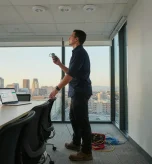
This is the most common mistake we see. A laptop or phone can make WiFi look healthy while scanners struggle all day.
Why this wifi planning problem happens
Laptops typically have stronger antennas and higher transmit power than handheld scanners. Therefore, they hide uplink issues. In warehouses, uplink reliability is often the real limiting factor.
What it looks like in real operations
- “Full bars” on a phone, but scanners disconnect in the same aisle
- Speed tests look fine, but WMS transactions time out
- Roaming seems smooth on a laptop, but voice picking drops during handoff
What to do instead
- Test with the actual scanner models and forklift tablets used on the floor
- Run active tests while devices are moving and transacting
- Measure retries and latency, not just signal strength
Tips: Device testing that prevents warehouse WiFi mistakes
- Bring at least two real operational devices (scanner + tablet/voice) to the survey.
- Test at device height (often 3–6 feet), not at chest height only.
- Walk the exact pick paths and dock routes where drops cause downtime.
Warehouse wifi mistakes: surveying at the wrong time (empty warehouse, closed dock doors)
Survey timing matters. A quiet warehouse can hide interference, capacity load, and dock door behavior.
Wireless survey errors caused by unrealistic conditions
- Inventory not yet stored in racks (less absorption and blockage)
- Fewer devices connected (capacity issues hidden)
- Forklifts and chargers not active (lower noise and interference)
- Dock doors closed (RF behavior changes when doors open)
What to do instead
- Survey during normal operations when possible
- At minimum, validate high-risk zones during peak shift windows
- Re-check problem aisles after inventory is stocked
Common Mistakes: After-hours surveys that miss the real problem
After-hours surveys are cooler and quieter, so they often miss interference, peak device load, and dock door effects. If you must survey after hours, schedule a follow-up validation walk during operations.
WiFi planning problems: focusing on WiFi coverage only and ignoring capacity
Coverage is easy to map. Capacity is harder to visualize. However, capacity is often why WiFi feels slow even with strong signal.
Wireless survey errors that hide capacity limits
- Only measuring RSSI (signal strength) and not channel utilization
- Ignoring device counts in staging, packing, and shipping zones
- Not accounting for printers, IoT devices, and guest traffic
- Using wide channels by default, reducing channel reuse
Best practices to avoid this warehouse wifi mistake
- Identify high-density zones and design for smaller, cleaner cells
- Measure channel utilization and retries during active periods
- Use channel widths that match the environment (often 20 MHz in busy areas)
Expert Insight: If your survey report doesn’t mention channel utilization, retries, or client distribution, it may be missing the data that drives network stability in real warehouses.
Warehouse WiFi mistakes: skipping roaming tests (handoff failures show up later)
Warehouses are roaming environments. Devices move constantly. If roaming is not tested, you can “pass” a survey and still fail in production.
Wireless survey errors that cause roaming problems
- Survey focuses on static coverage points only
- No validation of handoffs during movement
- APs designed for maximum range instead of controlled cell size
What roaming failures look like
- Voice picking drops when moving between aisles
- Scanners pause for several seconds during handoff
- Devices stay connected to a distant AP (“sticky client” behavior)
What to do instead
- Test roaming by walking real routes with active traffic
- Design for controlled cell sizes, not maximum range
- Keep SSIDs simple to reduce airtime overhead
Wireless survey errors: ignoring metal racks and aisle geometry (RF tunnel effect)
Long aisles can act like RF hallways. Signals travel farther than expected, which increases co-channel interference if the design is not controlled.
How this becomes a wifi planning problem
- APs are placed in a simple grid without an aisle strategy
- Transmit power is left high “for coverage”
- Channel reuse is not planned for adjacent aisles
What to do instead
- Plan coverage by aisle and zone, not just square footage
- Use power control to limit how far each AP dominates
- Create a channel plan that prevents adjacent aisles from competing
Tips: Simple survey checks for aisle interference
- Stand mid-aisle and note how many APs are heard strongly on the same channel.
- Measure retry rates while moving down the aisle, not just at one point.
- Validate performance when aisles are fully stocked, not just partially filled.
WiFi planning problems: skipping the wired layer (cabling, PoE, switching)
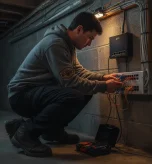
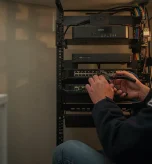
Some “wireless” issues are actually wired issues. If you don’t validate cabling and PoE during planning, you can end up troubleshooting the wrong layer.
Warehouse wifi mistakes that start in the wired layer
- Assuming existing cable runs are good without testing
- Not checking PoE budget and switch capacity for the new AP count
- Ignoring long runs, poor terminations, or environmental damage near docks
What to do instead
- Inspect and test critical runs, especially in high-risk zones
- Confirm switch PoE budget supports peak AP draw
- Document cable paths and labeling for faster troubleshooting
Industry standards and guidance to reference where applicable:
- ANSI/TIA structured cabling standards for performance expectations and labeling practices
- IEEE 802.11 standards for WiFi behavior and compatibility (client-dependent)
- NIST cybersecurity guidance for segmentation and access control planning
Internal linking opportunities (anchor text only): warehouse WiFi site survey checklist, wifi survey vs installation, high-bay warehouse WiFi design, access point placement guide, PoE switch sizing guide.
Warehouse WiFi mistakes: failing to document assumptions and constraints
Even a good survey can fail later if the assumptions are not written down. Warehouses change fast, and “tribal knowledge” disappears.
Wireless survey errors caused by missing documentation
- No notes about rack heights, inventory type, or aisle layout
- No record of which devices were tested during the survey
- No explanation of why AP count and placement were chosen
- No risk notes about expansion, seasonal inventory, or dock door behavior
What to do instead
- Document tested devices, test times, and key zones
- Record design targets (coverage, SNR, roaming expectations)
- Include a “what changes will break this” section (new racks, new inventory, new devices)
FAQ: Common warehouse WiFi survey mistakes to avoid
What is the most common warehouse WiFi survey mistake?
Testing with the wrong device. Laptops and phones can hide uplink and roaming issues that scanners and voice devices expose immediately.
Why do warehouse WiFi surveys fail after installation?
They often fail because conditions changed (inventory, device counts, dock doors) or because the survey focused on coverage only and ignored capacity, roaming, and interference.
How do I know if my survey has wifi planning problems?
If the survey report does not include tested devices, key zone targets, channel/power strategy, and validation steps, it may not be strong enough for a warehouse deployment.
Should a warehouse WiFi survey include roaming tests?
Yes. Warehouses are roaming environments. Roaming tests should be done with real devices while moving through aisles, docks, and staging zones during normal operations.
Can adding more access points fix warehouse wifi mistakes?
Sometimes, but it can also make performance worse if it increases overlap and co-channel interference. A survey should guide placement, channel reuse, and power levels before adding hardware.
Conclusion: avoid wireless survey errors before they become expensive installs
Most warehouse wifi mistakes are preventable. The key is to treat the survey as an engineering step, not a quick walkthrough. When you test with real devices, survey under real conditions, and plan for capacity and roaming, you avoid the most common wireless survey errors and reduce long-term wifi planning problems.
If you’re planning a new deployment or troubleshooting an unreliable network, start by validating the survey process. A strong survey saves money because it prevents rework, downtime, and guesswork.
Want a Warehouse WiFi Survey That Leads to a Stable Install?
We’ll help you avoid the common survey mistakes—so your WiFi design supports scanners, roaming, and real warehouse workflows without costly trial-and-error.
Call: 833-469-6373 or 516-606-3774
Text: 516-606-3774 or 772-200-2600
Email: hello@unifinerds.com | Visit: unifinerds.com
Free consultations • Phased implementation • Budget-friendly • Expert support