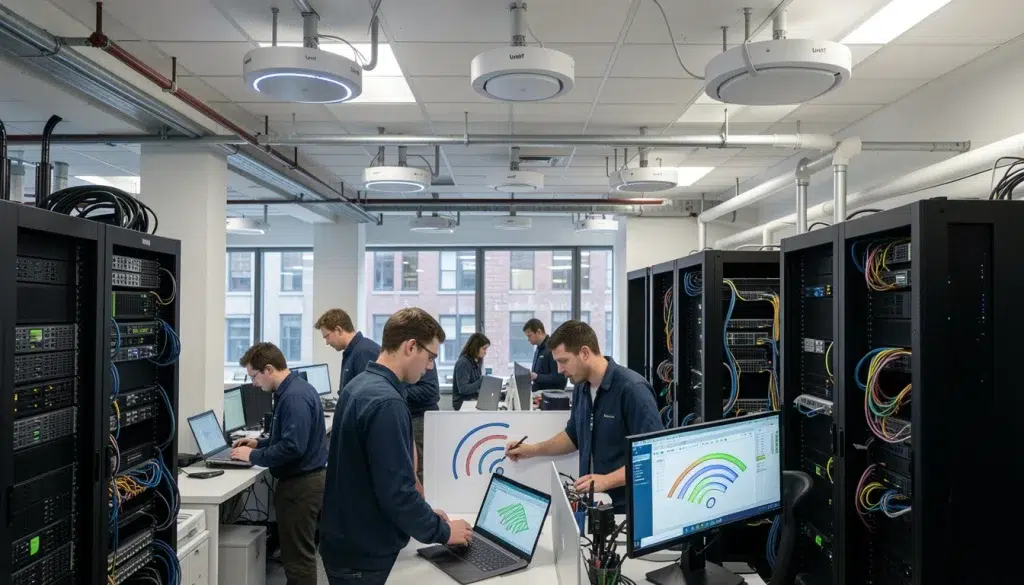
How to Plan a UniFi WiFi Deployment in a New York Office
Your NYC office WiFi can look “fine” on a speed test and still fail in the moments that matter: video calls freeze, conference rooms drop connections, and employees complain about dead zones near windows or interior offices. In New York City, dense RF congestion and challenging building materials make WiFi planning harder than most people expect. If you want to plan UniFi deployment the right way, you need a process that covers UniFi access point placement, realistic capacity planning, and a proper wireless site survey NYC approach that matches how your office actually works.
This guide walks through a practical, repeatable workflow for office WiFi planning NYC using UniFi, written from real deployment experience in commercial environments.
Why NYC office WiFi planning is different
NYC WiFi problems are often caused by the environment, not the equipment. However, many deployments still treat offices like simple open spaces. Therefore, the network becomes unstable as soon as usage increases.
Common NYC factors that impact UniFi performance
- RF congestion: neighboring offices and apartments create constant channel competition.
- Signal blockers: concrete, brick, metal studs, glass partitions, and fire doors.
- Vertical bleed-through: APs can interfere across floors in high-rises.
- High device density: laptops, phones, VoIP, printers, and IoT devices.
- Mixed usage: video meetings, cloud apps, file sync, and guest traffic.
Expert Insight: In NYC, the goal is not “maximum signal everywhere.” The goal is predictable performance. That usually means smaller, cleaner WiFi cells, good channel reuse, and validation with real devices in real work areas.
Step 1: Define requirements before you buy hardware
To plan UniFi deployment successfully, you need to define what “good WiFi” means for your office. Therefore, you can design for outcomes instead of guessing.
Questions to answer upfront
- How many employees and devices are on-site during peak hours?
- Which areas are business-critical (conference rooms, reception, trading floors, studios)?
- Do you need guest WiFi, and should it be isolated?
- Are there latency-sensitive apps (VoIP, video production, real-time tools)?
- Will you expand headcount or add more rooms in the next 12–36 months?
Real-world scenario: A 60-person office plans WiFi based on headcount only. However, each employee has 2–3 devices, plus conference rooms have dedicated video systems. The network becomes overloaded at 11 a.m. daily. After recalculating device density and redesigning AP placement, performance stabilizes without changing the ISP plan.
Step 2: Build a simple network segmentation plan (staff, guest, and IoT)
Segmentation is one of the highest-impact improvements you can make. In addition, it makes troubleshooting easier and reduces security risk.
A practical segmentation model for NYC offices
- Staff network: laptops, phones, internal systems
- Guest network: internet-only, isolated from staff devices
- IoT network: printers, TVs, conference room gear, building devices
What segmentation should accomplish
- Guest traffic cannot access staff devices or internal resources.
- IoT devices are isolated and only allowed to reach what they need.
- Staff WiFi stays stable even when guests connect during meetings.
Tips: Keep UniFi WiFi simple and support-friendly
- Use as few SSIDs as possible (usually 2–3 total) to reduce overhead and confusion.
- Name networks clearly (example: Office-Staff, Office-Guest).
- Document which devices belong on each network so MSPs and IT teams can support it fast.
Step 3: UniFi access point placement for NYC offices
UniFi access point placement should match how people work and move. Therefore, you should plan around conference rooms, desk clusters, and high-usage zones, not just “even spacing.”
Placement principles that work in real offices
- Prioritize conference rooms: video calls expose weak WiFi fast.
- Design for desk density: open areas may need more APs for capacity.
- Avoid placing APs in closets: walls and equipment block signal.
- Watch for signal blockers: fire doors, elevator cores, and thick walls.
- Plan for roaming paths: reception to meeting rooms to break areas.
Ceiling vs wall mounting (what to consider)
- Ceiling mounts: often best for open office coverage and cleaner patterns.
- Wall mounts: can work well in hallways or when ceilings are inaccessible.
- Height matters: too high can reduce usable signal at the client level in some layouts.
Expert Insight: Many NYC offices have glass-walled conference rooms. Glass can look “transparent,” but metal framing and reflections can create weird coverage patterns. Always validate conference rooms with real calls and real devices.
Step 4: Wireless site survey NYC: predictive, passive, and active validation
A wireless site survey NYC approach should match your risk level and office complexity. However, even a “basic” office benefits from validation because NYC RF conditions change by floor, tenant, and building.
Survey types and when to use them
- Predictive survey: best for planning AP count and placement from floor plans.
- Passive survey: measures existing RF conditions and interference patterns.
- Active survey: tests real performance (throughput, roaming, latency) on the live network.
What to validate during an active survey
- Conference room performance during video calls.
- Roaming behavior while walking typical routes.
- Performance at the edges of coverage zones (dead zone detection).
- Consistency across high-density desk areas.
Step 5: Capacity planning (the part most offices skip)
Capacity is about airtime, not just bandwidth. Therefore, you can have a gigabit ISP and still have slow WiFi if the airwaves are overloaded.
What drives capacity needs in NYC offices
- High client count in open work areas
- Video meetings and collaboration tools
- Large file sync and cloud backups
- Guest usage during meetings and events
Practical capacity best practices
- Use more APs with smaller cells when density is high.
- Prefer 5 GHz and 6 GHz (where supported) for better capacity.
- Avoid “one AP covers everything” designs in dense spaces.
- Validate performance during peak hours, not after-hours.
Common Mistakes: Why UniFi office WiFi feels unstable
Turning transmit power to high everywhere. It increases interference and makes roaming worse.
Designing for coverage only. Strong signal does not equal high capacity.
Skipping real validation. Testing in an empty office hides problems that appear during peak usage.
Step 6: Cabling, PoE, and switching considerations
WiFi depends on the wired network behind it. In addition, PoE budgets can limit AP performance if not planned correctly.
Infrastructure checklist
- Structured cabling: clean runs to each AP location, properly labeled.
- PoE switching: confirm PoE budgets match AP models and quantities.
- Uplinks: ensure switch uplinks are sized for expected traffic.
- UPS protection: keep core switching and gateway online during brief outages.
Step 7: Go-live testing and ongoing optimization
After deployment, you should validate performance and document the network. Therefore, future troubleshooting is faster and expansions are easier.
Go-live validation checklist
- Test staff and guest WiFi in all critical zones.
- Run video calls in conference rooms during business hours.
- Walk roaming paths and confirm stable handoffs.
- Confirm guest isolation and segmentation rules work as intended.
- Document SSIDs, VLANs, device inventory, and AP locations.
FAQ: planning a UniFi deployment in a New York office
How many UniFi access points does my NYC office need?
It depends on office layout, building materials, and device density. NYC offices often need more APs than expected because walls, elevator cores, and RF congestion reduce usable airtime. A predictive plan plus active validation is the most reliable way to size AP count.
Do I really need a wireless site survey in NYC?
In most cases, yes. NYC RF conditions vary dramatically by building and floor. A wireless site survey NYC approach helps you avoid dead zones, reduce interference, and validate conference rooms and roaming paths.
What is the biggest mistake in UniFi access point placement?
Placing APs based on “even spacing” instead of usage zones. Conference rooms, dense desk areas, and reception zones need priority. Another common mistake is placing APs in closets or behind obstacles that block signal.
Should guest WiFi be on the same network as staff?
No. Guest traffic should be isolated for security and stability. Segmentation prevents guest usage spikes from impacting staff operations and reduces risk from unmanaged devices.
Why does WiFi look strong but still feel slow?
Because WiFi performance is often limited by airtime contention, interference, and roaming behavior. Therefore, you can have strong signal and still have poor throughput during peak usage.
Conclusion: a successful UniFi deployment is a process, not a purchase
To plan UniFi deployment in a NYC office, you need more than hardware selection. You need a workflow: define requirements, segment networks, plan UniFi access point placement, validate with a wireless site survey NYC approach, and test during real usage. When you do that, UniFi can deliver stable roaming, strong capacity, and a network that is easy to support and scale.
If you want predictable performance in conference rooms, fewer WiFi complaints, and a network that can grow with your office, start with a survey-driven plan and real-world validation.
Want a UniFi WiFi Plan Built for NYC Offices and Real-World Usage?
We’ll map your coverage and capacity needs, plan AP placement, and validate performance—so your UniFi deployment works in conference rooms, open areas, and everywhere in between.
Call: 833-469-6373 or 516-606-3774
Text: 516-606-3774 or 772-200-2600
Email: hello@unifinerds.com | Visit: unifinerds.com
Free consultations • Phased implementation • Budget-friendly • Expert support