High-Bay Warehouse WiFi Design Considerations
If your scanners drop, forklifts lose connectivity, or voice picking lags in the aisles, your high bay warehouse wifi design is probably fighting the building itself. In a tall warehouse wireless environment, signals don’t behave like they do in an office, so vertical coverage planning becomes just as important as aisle-to-aisle coverage.
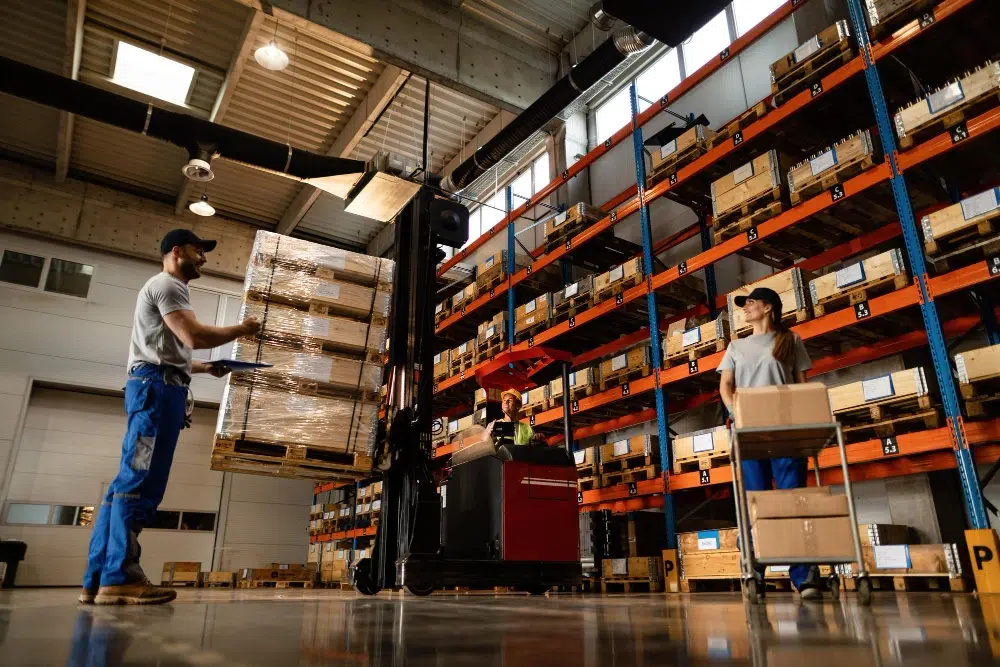
High-bay facilities are unique: long aisles, reflective metal racks, moving inventory, and access points mounted 30–45+ feet up. The result is often “it works in some spots” WiFi that fails exactly where operations depend on it most.
This guide walks through practical, real-world design considerations for reliable warehouse WiFi. You’ll learn what breaks coverage, what to measure, how to plan for height and density, and how to avoid the most common mistakes we see on real installs.
Why high-bay warehouses break “normal” WiFi designs
Most WiFi problems in warehouses are not caused by “bad internet.” They’re caused by RF (radio frequency) behavior in a harsh environment.
Here’s what makes high-bay WiFi different:
- Height changes everything: Mounting APs high increases line-of-sight, but also increases the chance of overshooting clients or creating large overlapping cells.
- Metal racks act like mirrors: Reflections create multipath interference, which can reduce throughput and increase retransmissions.
- Inventory is a moving wall: Pallets, liquids, and dense products absorb or block signal. Coverage can change week to week.
- Long aisles create “RF tunnels”: Signals can travel far down aisles, causing co-channel interference (APs talking over each other).
- Client devices are often low-power: Scanners and handhelds transmit weaker than laptops. Your AP may “hear” the client poorly even if the client sees strong signal.
Expert Insight: In high-bay spaces, the “downlink” (AP to device) can look great while the “uplink” (device back to AP) is the real failure point. That’s why designs based only on “signal bars” often collapse under real scanner traffic.
Start with user intent: what “good WiFi” means in a warehouse
Before you pick hardware or count access points, define what the network must do. “Coverage everywhere” is not a requirement. It’s a wish. Requirements are measurable.
Common warehouse WiFi use cases (and why they matter)
- Barcode scanning / WMS transactions: Needs stable roaming and low packet loss more than raw speed.
- Voice picking: Sensitive to latency and jitter. Roaming must be clean.
- Forklift tablets: Often 5 GHz capable, but can be mounted behind metal frames that block signal.
- IoT sensors / printers: Many are 2.4 GHz only and can flood airtime if not segmented.
- Guest WiFi / office areas: Different security and performance expectations.
Define targets like:
- Minimum RSSI (signal strength) at the client, such as -67 dBm for voice and scanning areas
- Minimum SNR (signal-to-noise ratio), such as 25 dB+
- Roaming performance (handoff without drops in key zones)
- Capacity targets (number of devices per aisle/zone)
Internal linking opportunities (anchor text only): warehouse network assessment, WiFi site survey checklist, UniFi access point placement guide, VLAN segmentation for warehouses.
High bay warehouse WiFi site surveys: what to measure (and how)
A proper survey is where high-bay projects are won or lost. Warehouses are too variable to “copy/paste” a design from another building.
Pre-survey questions that save time and money
- What are the rack heights and aisle widths?
- What products are stored (liquids, metal parts, paper goods, electronics)?
- Where do devices actually operate (pick faces, loading docks, staging, mezzanines)?
- What client devices are used (models, WiFi generations, 2.4/5 GHz support)?
- Are there roaming-sensitive applications (voice, real-time scanning)?
On-site measurements that matter in tall warehouse wireless environments
- Noise floor: Warehouses can have interference from machinery, cordless devices, or neighboring networks.
- Attenuation by inventory: Measure with aisles full and, if possible, compare to emptier areas.
- Reflection patterns: Metal racks can create “hot spots” and “dead spots” that shift by aisle.
- Uplink reality: Test with the actual scanners/tablets, not just a laptop.
Tips: How to get a survey that reflects real operations
- Survey during normal activity hours so you capture real RF noise and device behavior.
- Test at the device height (often 3–6 feet), not at chest height only.
- Walk the exact pick paths, dock doors, and staging zones where drops cause downtime.
Vertical coverage planning: height, downtilt, and aisle geometry
In high-bay design, you’re not just covering a floor plan. You’re covering a volume of space. That’s why vertical coverage planning is a separate discipline from office WiFi.
Mounting height: higher is not always better
Mounting APs near the ceiling can reduce tampering and improve line-of-sight. However, it can also create oversized cells that overlap too much, especially in 2.4 GHz.
Practical guidance:
- If APs are mounted very high, you often need more APs at lower power to control cell size and roaming.
- If you can mount lower (for example, on endcaps or columns), you can often improve client uplink and reduce reflections.
Aisles behave like RF hallways
Long aisles can carry signal farther than expected. This causes multiple APs to be heard strongly in the same aisle, which increases contention and reduces throughput.
To manage this:
- Use directional patterns where appropriate to “paint” coverage down aisles without blasting across the whole warehouse.
- Reduce transmit power to limit how far each AP dominates.
- Plan channel reuse carefully so adjacent aisles are not fighting on the same channel.
Expert Insight: In many high-bay warehouses, performance improves when you stop chasing “maximum range” and start designing for “controlled coverage.” Smaller, cleaner cells usually beat fewer, louder APs.
Choosing bands and channels for high bay warehouse WiFi
Band and channel planning is where many warehouse networks quietly fail. The WiFi might connect, but airtime gets congested and roaming becomes unpredictable.
2.4 GHz vs 5 GHz vs 6 GHz (what’s realistic in warehouses)
- 2.4 GHz: Longer range, but fewer non-overlapping channels and more interference. Often necessary for legacy devices, but should be controlled.
- 5 GHz: Usually the workhorse for warehouse operations. More channels and better capacity, but shorter range and more sensitivity to obstructions.
- 6 GHz: Great potential for clean spectrum and capacity, but depends on client support and may require denser AP placement.
Best practice in most facilities:
- Prioritize 5 GHz for operational devices that support it.
- Keep 2.4 GHz for IoT/legacy, but limit channel width and power.
- Use 6 GHz as a capacity layer where client devices justify it.
Channel width: don’t “go wide” by default
Wider channels can increase peak speed, but they reduce the number of usable channels and increase co-channel interference. In a warehouse, reliability usually beats speed.
- 2.4 GHz: typically 20 MHz only
- 5 GHz: often 20 MHz in dense areas; 40 MHz only if the RF environment supports it
- 6 GHz: can be tuned based on density and client mix
Access point placement strategies for tall warehouse wireless
Placement is not just “even spacing.” It’s about matching coverage patterns to how people and devices move.
Common placement models
- Ceiling grid: Simple, but can create too much overlap and unpredictable reflections in metal rack environments.
- Aisle-focused design: APs aligned to cover specific aisles, often with controlled power and careful channel reuse.
- Hybrid: Ceiling coverage for general areas plus targeted coverage for high-activity zones (packing, staging, docks).
High-impact zones that deserve special attention
- Loading docks: Door openings, trucks, and outdoor bleed can create interference and roaming issues.
- Staging and packing: High device density and constant scanning.
- Mezzanines: A second “floor” that often gets forgotten until users complain.
- Freezers/coolers: Special enclosures and cabling considerations, plus signal behavior changes.
Tips: Placement rules that usually hold up in real warehouses
- Design for where devices operate, not for empty floor space.
- Keep APs out of direct “metal canyon” reflections when possible (avoid mounting directly above dense racking without a plan).
- Validate roaming by walking with the actual scanners while traffic is running.
Capacity planning: the hidden reason warehouse WiFi “feels slow”
Coverage gets the most attention, but capacity is often the real bottleneck. A warehouse can have hundreds of devices, plus printers, cameras, and guest phones.
What drives capacity needs
- Number of active devices per zone (not just total devices)
- Traffic type (voice vs scanning vs video)
- Retry rates caused by reflections and interference
- Legacy clients that force slower data rates
Practical best practices:
- Use more APs at lower power to reduce contention in busy zones.
- Disable very low data rates where appropriate to reduce airtime waste (validate with legacy devices first).
- Segment traffic with VLANs and SSIDs thoughtfully so operational traffic stays stable.
Common mistakes in high bay warehouse WiFi (and why they happen)
Common Mistakes: What we see most often in the field
1) Mounting APs too high and turning power up. This feels logical, but it creates oversized cells, poor roaming, and co-channel interference down long aisles.
2) Designing with a laptop only. Laptops have better antennas and transmit power than scanners. The network “passes” the test but fails during operations.
3) Using wide channels everywhere. It can look fast in a speed test, but it reduces channel reuse and increases interference, especially in 5 GHz.
4) Ignoring inventory changes. A design that works in an empty warehouse can fall apart after racking fills with product.
5) Treating docks like normal indoor space. Open doors and outdoor bleed change RF behavior and can cause sticky clients and roaming drops.
Step-by-step best practices for a reliable warehouse WiFi design
Here’s a practical approach that aligns with modern WiFi design principles and real warehouse constraints.
Define performance targets by zone
- Pick/pack zones: prioritize low latency and stable roaming
- Bulk storage aisles: prioritize consistent coverage and predictable handoffs
- Docks: prioritize fast roaming and interference control
Validate client capabilities
- Confirm which devices support 5 GHz and 6 GHz
- Check if devices support fast roaming features (varies by vendor)
- Identify any 2.4 GHz-only devices that must be supported
Build a predictive plan, then prove it with on-site testing
- Start with a predictive model based on racking, materials, and ceiling height
- Perform an active survey with real devices and real workflows
- Adjust AP count, placement, and power based on measured retries and roaming behavior
Tune channels and power for controlled cells
- Use 20 MHz channels where density is high
- Reduce power to limit aisle bleed and improve channel reuse
- Keep 2.4 GHz controlled and minimal where possible
Segment and secure the network
- Separate operational devices from guest traffic using VLANs
- Use strong authentication where appropriate (for example, WPA2/WPA3-Enterprise in business environments)
- Apply firewall rules to reduce lateral movement risk
Industry standards and guidance to align with (where applicable):
- ANSI/TIA structured cabling standards for cable performance expectations and labeling practices
- IEEE 802.11 standards for WiFi behavior and capabilities (client and AP dependent)
- NIST cybersecurity guidance for segmentation and access control planning in operational networks
Expert Insight: A warehouse WiFi design should be tested like an operations system, not like a home network. If you don’t test roaming while scanners are actively transacting, you’re guessing. The best designs are the ones that prove performance under load.
Real-world scenarios: what “good” looks like in practice
Scenario 1: “We have full bars, but scanners still drop”
This usually happens when APs are too high and too loud. The scanner sees strong signal, but its uplink can’t reliably reach the AP. Roaming may also be sticky because multiple APs are heard at similar strength.
Fix approach:
- Lower AP power and tighten cell size
- Add APs to reduce distance for uplink
- Rework channel reuse so adjacent aisles aren’t competing
Scenario 2: “Docks are a dead zone when doors are open”
Open dock doors change RF boundaries. Outdoor interference and reflections from trucks can cause unstable connections.
Fix approach:
- Add targeted coverage at dock doors and staging lanes
- Control roaming so devices don’t cling to distant APs
- Validate performance during active loading times
Scenario 3: “It worked last month, now it’s unreliable”
Inventory changes can block or absorb signal, especially when aisles fill with dense products. Seasonal stock shifts can change RF behavior without any changes to your network settings.
Fix approach:
- Re-survey the worst aisles with the warehouse at “normal full” inventory levels
- Add targeted APs in problem zones instead of increasing power everywhere
- Re-check channel overlap and retry rates after inventory changes
Design details that matter (but often get skipped)
Roaming behavior: make handoffs predictable
Warehouses are roaming environments. Devices move constantly, and the network must hand clients from AP to AP without drops.
What improves roaming in practice:
- Consistent cell sizing: Similar coverage footprints help clients decide when to roam.
- Controlled power: Lower power often improves roaming by reducing “sticky client” behavior.
- Fewer SSIDs: Too many SSIDs increase management overhead and airtime use.
- Validate with real devices: Some scanners roam poorly regardless of AP settings, so testing is critical.
Client density and airtime: the real capacity limiter
WiFi is shared. Even if you have strong signal, too many devices talking on the same channel will slow everything down.
Common warehouse airtime hogs:
- 2.4 GHz-only devices that connect at slow data rates
- Printers and IoT devices that “chat” constantly
- Guest devices streaming video in break areas
Best practices:
- Keep operational devices on 5 GHz (and 6 GHz where supported)
- Use 20 MHz channels in high-density zones for better channel reuse
- Segment guest traffic so it can’t impact WMS/voice traffic
Interference sources: not all “noise” is WiFi
Warehouses often have non-WiFi interference that shows up as random drops or high retry rates.
- Wireless barcode systems or proprietary radios
- Bluetooth-heavy areas (headsets, scanners, beacons)
- Industrial equipment with electrical noise
- Neighboring warehouses with strong WiFi near shared walls
Practical recommendation: measure the noise floor and channel utilization during business hours, then tune channels and AP placement based on what you actually see.
Tips: Quick wins that often stabilize warehouse WiFi fast
- Stop increasing transmit power as a “fix.” It usually makes roaming and interference worse.
- Use 20 MHz channels in busy areas to reduce co-channel contention.
- Test with the real scanners/tablets while operators are moving, not after hours.
Best practices for access point hardware and antennas in high-bay spaces
Hardware selection matters, but it’s not about buying the “strongest” AP. It’s about choosing the right pattern and features for the environment and client mix.
What to look for in warehouse APs
- Strong 5 GHz performance: Most operational devices should live here.
- Good receive sensitivity: Helps hear low-power scanners better.
- Modern WiFi features: Improves efficiency and capacity when clients support it.
- Directional options (when needed): Useful for aisle-focused coverage and controlling bleed.
- Industrial mounting flexibility: Warehouses often require creative mounting on columns, trusses, or endcaps.
Directional vs omnidirectional coverage (simple explanation)
An omnidirectional AP spreads signal broadly, like a light bulb. A directional pattern focuses signal more like a flashlight.
- Omni: Good for open areas, staging, and general coverage zones.
- Directional: Useful for long aisles and targeted coverage where you want control.
In many tall warehouse wireless designs, a mix of both is the most practical approach.
Structured cabling and switching: the foundation under the WiFi
WiFi performance depends on the wired network behind it. If cabling is marginal or switching is misconfigured, you’ll see random AP reboots, poor throughput, or intermittent drops that look like “wireless issues.”
Cabling considerations for warehouses
- Use properly rated cable for the environment (heat, cold, and mechanical stress)
- Label and document every run for faster troubleshooting
- Plan cable pathways that won’t get crushed, snagged, or exposed to forklifts
- Consider fiber uplinks for long distances or high-interference pathways
PoE and switch capacity planning
- Confirm PoE budget supports all APs at peak draw
- Use reliable switching with proper uplink capacity to avoid bottlenecks
- Segment traffic using VLANs so operational traffic stays protected and stable
Internal linking opportunities (anchor text only): Cat6A vs fiber for warehouses, PoE switch sizing guide, network diagram documentation.
Security and segmentation: keep operations protected
Warehouses often connect operational devices, printers, cameras, and guest phones on the same network. That’s risky and can also hurt performance.
Practical segmentation model
- Operations SSID/VLAN: Scanners, voice, forklifts, WMS devices
- IoT SSID/VLAN: Printers, sensors, specialty devices
- Security systems VLAN: Cameras and access control (if applicable)
- Guest SSID/VLAN: Internet-only access with rate limits
Security best practices (plain language):
- Use strong authentication for business devices when possible
- Limit what each VLAN can talk to using firewall rules
- Keep device management interfaces restricted to IT/admin networks
Expert Insight: Segmentation is not just “cybersecurity.” It’s also performance. When guest traffic or chatty IoT devices share airtime and broadcast domains with scanners, your operational WiFi becomes unpredictable.
Validation and ongoing maintenance: how to keep it working
A warehouse WiFi design is not “set it and forget it.” The building changes, inventory changes, and device counts grow.
How to validate success after deployment
- Roaming test walks with scanners and voice devices during live operations
- Measure retry rates, channel utilization, and client distribution by AP
- Confirm coverage targets in the highest-impact zones (docks, staging, pick faces)
- Document final AP locations, channels, power levels, and VLAN/SSID mappings
Ongoing best practices
- Re-check RF performance after major inventory or racking changes
- Review logs for recurring disconnect patterns
- Keep firmware updates planned and tested (avoid surprise changes during peak season)
- Expand coverage in phases as operations grow
Common Mistakes: Post-install issues that create “mystery” outages
1) Changing channels or power randomly. Small tweaks can cause big roaming problems in long aisles.
2) Adding APs without a channel plan. More APs can reduce performance if they increase co-channel interference.
3) Ignoring cabling and PoE health. Intermittent power issues often look like WiFi drops.
FAQ: High-Bay Warehouse WiFi Design
What is the biggest challenge in warehouse wifi design?
The biggest challenge is controlling coverage and interference in a reflective, metal-heavy environment while supporting low-power client devices like scanners. Height and long aisles can create oversized cells and roaming issues if power and channels are not carefully planned.
Should high bay warehouse wifi use 2.4 GHz or 5 GHz?
Most operational devices should use 5 GHz because it offers more channels and better capacity. However, 2.4 GHz may still be needed for legacy or IoT devices. The best approach is to prioritize 5 GHz and keep 2.4 GHz controlled and limited.
How many access points does a tall warehouse wireless network need?
It depends on aisle layout, rack height, inventory type, and device density. High-bay warehouses often need more APs at lower power to create smaller, cleaner cells that support reliable roaming and capacity.
Why do scanners disconnect even when signal looks strong?
Scanners often have weaker transmit power and smaller antennas than laptops. The AP may transmit strongly to the scanner, but the scanner may not reliably transmit back. This uplink limitation is common in high-bay environments.
What is vertical coverage planning in a warehouse?
Vertical coverage planning means designing WiFi to cover the full usable space, not just the floor plan. It includes mounting height, antenna patterns, aisle geometry, and ensuring devices at working height have stable uplink and roaming performance.
Conclusion: Build high bay warehouse wifi for operations, not just coverage
High-bay warehouses demand a different approach than office WiFi. The winning designs focus on controlled cells, realistic client testing, and vertical coverage planning that matches aisle geometry and inventory behavior.
If you take one thing from this guide, make it this: reliablehigh bay warehouse wifi is engineered, measured, and validated under real workflows. That’s how you prevent scanner drops, reduce downtime, and keep operations moving.
Need a high bay warehouse wifi Plan That Holds Up Under Real Workloads?
Get a practical high-bay WiFi design built for scanners, roaming, and aisle-by-aisle reliability—so your team stays connected where it matters most.
Call: 833-469-6373 or 516-606-3774
Text: 516-606-3774 or 772-200-2600
Email: hello@unifinerds.com | Visit: unifinerds.com
Free consultations • Phased implementation • Budget-friendly • Expert support