RF Interference in Warehouses: Identification and Solutions
RF interference warehouse problems are one of the most common causes of slow WiFi, scanner drops, and “it works in the morning but fails at peak hours.” In this guide, we explain how to identify wireless interference, troubleshoot real warehouse signal issues, and apply corrective steps that IT technicians use in the field. We also cover common installation errors, including TIA/EIA-style cabling and documentation problems that can look like RF interference.
The goal is simple: help you move from guessing to measuring, so your warehouse WiFi becomes predictable.
RF Interference Warehouse Basics: What “Interference” Really Means
Interference is anything that reduces the quality of wireless communication. Sometimes it is another WiFi network. Other times it is a non-WiFi source like a microwave, a wireless camera, or industrial equipment. Therefore, “interference” is not one problem. It is a category of problems.
Wireless Interference vs Weak Signal (Why the Fix Is Different)
- Weak signal: the device cannot hear the access point clearly
- Interference: the device can hear the access point, but the channel is noisy or busy
- Congestion: too many devices share the same airtime
Corrective step: do not treat every complaint as a coverage problem. If you add APs to an interference problem, you can make it worse.
RF Interference Warehouse Symptoms: What Users Report (and What It Usually Means)
Warehouse teams often describe RF problems in simple terms. That is helpful, but it can also hide the real cause. Therefore, translate symptoms into testable hypotheses.
Warehouse Signal Issues That Often Point to Wireless Interference
- “WiFi is slow in one aisle” (channel overlap, reflections, or a noisy source nearby)
- “Scanners drop when forklifts pass” (roaming + multipath + client behavior)
- “It’s fine early, bad at shift change” (congestion and airtime saturation)
- “Video cameras stutter” (capacity, retries, or uplink issues)
- “Connected but no internet” (often DHCP/DNS, not RF)
Real-world technician scenario: “They replaced APs twice, but the noise floor was the problem”
Technicians sometimes inherit warehouses where hardware was replaced repeatedly. However, the real issue was a high noise floor from nearby equipment. The corrective step is to measure noise and retries, then remove or isolate the interference source, or redesign channels and AP placement.
Wireless Interference in Warehouses: The Main Types You Need to Know
Warehouses have both WiFi and non-WiFi interference sources. Therefore, you need a simple way to categorize what you are seeing.
RF Interference Warehouse Type 1: Co-Channel Interference (CCI)
Co-channel interference happens when multiple APs use the same channel and overlap too much. In warehouses, this often happens after “we added more APs” without a channel plan. As a result, devices spend more time waiting to transmit.
Corrective step: reduce cell size, tune transmit power, and plan channel reuse by zone.
RF Interference Warehouse Type 2: Adjacent-Channel Interference (ACI)
Adjacent-channel interference happens when channels overlap. This is common on 2.4 GHz when channels are not set to non-overlapping options. Therefore, 2.4 GHz planning must be strict.
Corrective step: use non-overlapping channels and prefer 5 GHz/6 GHz for performance where possible.
Wireless Interference Type 3: Non-WiFi Noise Sources
Non-WiFi sources can raise the noise floor and cause retries. In warehouses, common sources include:
- Microwaves and breakroom equipment
- Wireless video transmitters
- Bluetooth-heavy zones
- Industrial motors, conveyors, and chargers
- Legacy cordless devices
Corrective step: locate the source, then change placement, shielding, or channel strategy.
Warehouse Signal Issues Type 4: Multipath and Reflections
Metal racks and machinery reflect RF. This can create multipath, which increases retries even when signal looks strong. Therefore, “good bars” can still perform poorly.
Corrective step: validate with retry rate and SNR, not only RSSI. Then adjust AP placement and antenna patterns.
RF Interference Warehouse Identification: What to Measure (Step-by-Step)
To identify interference, you need repeatable measurements. Otherwise, you will chase ghosts. Therefore, use a simple measurement workflow.
Wireless Interference Measurement Step 1: Capture the “Where and When”
- Exact location (aisle number, dock door, freezer entrance)
- Time of day (shift change, peak picking, receiving waves)
- Device type (scanner model, tablet, voice headset)
- What action triggers it (turning corner, printing label, loading truck)
Corrective step: if you cannot reproduce the problem, you cannot fix it. Build a repeatable test path.
RF Interference Warehouse Measurement Step 2: Check SNR, Retries, and Utilization
- SNR: shows usable signal quality
- Retry rate: indicates interference, multipath, or poor channel design
- Channel utilization: shows congestion and airtime saturation
- Roaming events: shows handoff stability
Warehouse Signal Issues Measurement Step 3: Compare 2.4 GHz vs 5 GHz vs 6 GHz
2.4 GHz travels farther but has fewer clean channels. 5 GHz has more channels and better performance. 6 GHz can be excellent in clean environments but has different range behavior. Therefore, band planning matters.
Corrective step: if scanners support 5 GHz, prioritize it for performance. Keep 2.4 GHz for legacy devices only, where possible.
Warehouse Signal Issues That Look Like RF Interference (But Aren’t)
Not every warehouse signal issue is RF. In fact, technicians often find wired-layer or services-layer problems that mimic interference. Therefore, validate the basics before you redesign RF.
Wireless Interference “Look-Alike”: DHCP and DNS Problems
Devices may show “connected” but fail to reach apps. That can be DHCP scope exhaustion or slow DNS. The corrective step is to check DHCP logs, lease times, and DNS response time during the failure window.
RF Interference “Look-Alike”: PoE Instability and AP Reboots
If APs reboot, clients drop. That can look like interference. The corrective step is to check PoE budgets, switch logs, and cable quality.
Real-world technician scenario: “The AP kept rebooting because the cable was bad”
Technicians often find a marginal termination that passes basic link but fails under PoE load. The corrective step is to certify the run and re-terminate to standard.
RF Interference Warehouse Solutions: Corrective Steps That Actually Work
Once you identify the interference type, you can apply targeted fixes. Therefore, match the solution to the cause.
Wireless Interference Fix: Reduce Co-Channel Interference
- Lower transmit power to reduce overlap
- Adjust AP placement to create repeatable cells
- Use a channel reuse plan by zone
- Limit 2.4 GHz coverage to required areas
Warehouse Signal Issues Fix: Improve SNR at Turning Points
- Add AP coverage at cross-aisles and end caps
- Use directional antennas where aisles behave like corridors
- Move APs away from reflective metal surfaces when possible
RF Interference Warehouse Fix: Remove or Isolate Non-WiFi Noise
- Relocate noisy equipment or APs to increase separation
- Change channels away from the noise signature
- Shield or contain the source where practical
- Schedule high-noise operations away from critical RF zones if possible
Corrective step: after changes, re-test the exact workflow that failed. Do not rely on a quick speed test in a different location.
Wireless Interference and Warehouse Layout: Aisles, Docks, and High-Density Zones
Interference is not evenly distributed. Warehouses have predictable hot zones. Therefore, treat these areas as special design zones.
RF Interference Warehouse Hot Zone: Shipping and Receiving Docks
Docks are busy and physically dynamic. Doors open and close. Trucks act like moving walls. As a result, reflections and congestion change throughout the day.
Corrective step: design for capacity at docks. Use smaller cells and validate during receiving waves.
Wireless Interference Hot Zone: Battery Charging and Machinery Areas
Chargers and motors can add noise. Therefore, test while equipment is running. If performance drops only when chargers are active, you likely found a non-WiFi interference source.
Warehouse Signal Issues Hot Zone: Cross-Aisles and Turns
Turns are where SNR drops and roaming fails. The corrective step is to validate overlap and adjust AP placement to stabilize handoffs.
TIA/EIA Installation Errors That Increase Warehouse Wireless Interference Problems
TIA/EIA structured cabling practices focus on labeling, documentation, and testability. That matters for WiFi because troubleshooting requires fast isolation. If you cannot identify which AP is on which port, you cannot fix problems quickly. Also, poor cabling can create packet loss that looks like RF interference.
RF Interference Warehouse Cabling Error (TIA/EIA): Unlabeled ports and undocumented changes
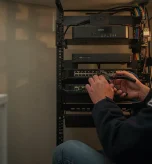
Technicians often see “mystery ports” in IDFs. The corrective step is to label both ends, maintain port maps, and keep diagrams updated.
Wireless Interference Warehouse Cabling Error (TIA/EIA): Bad terminations and no certification
Bad terminations can cause errors and PoE instability. The corrective step is to certify critical runs feeding APs and re-terminate to standard when results fail.
Corrective step: make troubleshooting physically possible
During outages, you may need to shut down a port or move an AP. If the cabling is undocumented, you lose time. Therefore, documentation is part of uptime.
RF Interference Warehouse Prevention: A Maintenance Plan That Keeps WiFi Stable
Warehouses change. Therefore, interference management is not a one-time project. A simple maintenance plan prevents slow drift into instability.
Wireless Interference Prevention Checklist (Monthly)
- Review channel utilization and retry trends
- Check for new SSIDs or rogue APs
- Confirm AP uptime and reboot history
- Validate dock and staging zones during peak activity
- Review switch port errors and PoE headroom
Warehouse Signal Issues Prevention Checklist (Quarterly)
- Re-walk the layout for changes in racks and staging
- Re-test roaming at known turning points
- Validate a few critical workflows with real devices
- Update documentation after any changes
Corrective step: if you change the layout, schedule a validation survey. Layout changes change RF behavior.
Conclusion: RF Interference Warehouse Fixes Start With Measurement
RF interference warehouse problems are solvable when you measure the right things. Separate weak signal from interference and congestion. Identify whether the issue is co-channel, adjacent-channel, non-WiFi noise, or multipath. Then apply targeted corrective steps. Finally, validate during real operations and keep documentation aligned with TIA/EIA-style best practices.
When you do that, warehouse WiFi stops being a mystery and becomes a managed system.
Schedule Your Free Warehouse WiFi Interference Review
Contact UniFi Nerds for a practical RF interference warehouse assessment. We’re available 24/7 to identify wireless interference sources, resolve warehouse signal issues, and deliver a coverage plan that holds up during peak operations.
Call: 833-469-6373 or 516-606-3774 | Text: 516-606-3774 or 772-200-2600
Email: hello@unifinerds.com | Visit: unifinerds.com
Free consultations • Phased implementation • Budget-friendly • Warehouse-ready design • 24/7 support