

How Warehouse WiFi Works: A Beginner’s Explainer
If you’ve ever watched a scanner stop working in the middle of a pick, you’ve seen how important WiFi is in a warehouse. Many teams assume WiFi is “just internet,” but warehouse WiFi is really an operational system. This beginner guide explains how warehouse wifi works in plain language, including industrial wireless networking explained step-by-step, the key parts of warehouse network basics, and what a solid wifi infrastructure warehouse setup looks like in the real world.
Target audience: warehouse owners, operations managers, and new IT managers who need a clear, non-technical explanation of warehouse WiFi for scanners, forklifts, tablets, and day-to-day warehouse workflows.
What warehouse WiFi actually does (in simple terms)
Warehouse WiFi connects mobile devices to your business systems. Therefore, it is the “wireless bridge” between scanners on the floor and the applications that run your operation.
Common warehouse devices that rely on WiFi
- Barcode scanners and handheld computers
- Forklift-mounted terminals
- Voice picking devices
- Tablets on carts
- Label printers (sometimes wireless, often wired)
- Staff phones and guest devices
Real-world scenario: A picker scans an item, and the scan must reach the WMS instantly. If WiFi drops for even a few seconds, the scan may fail, the task may time out, or the user may need to rescan.
Expert Insight: In warehouses, WiFi is not “nice to have.” It is part of production. The goal is not maximum speed. The goal is stable connectivity, predictable roaming, and consistent performance during peak operations.
Warehouse network basics: the 5 building blocks
To understand how warehouse WiFi works, it helps to know the pieces involved. Therefore, here are the core building blocks in plain language.
1) Internet connection (WAN)
This is your connection to the outside world. However, many warehouse systems are internal too, so WiFi can still be critical even if the internet is “fine.”
2) Router / gateway (your traffic director)
The gateway connects your warehouse network to the internet and controls traffic. In addition, it often handles security rules and VPN access for remote management.
3) Switches (the wired distribution)
Switches connect wired devices and provide network ports. Most warehouse WiFi access points are powered and connected through switches using PoE (Power over Ethernet).
4) WiFi access points (the wireless “radio stations”)
Access points broadcast WiFi signals and connect wireless devices to the wired network. They are not the same as consumer “routers” you buy for a home.
5) Client devices (scanners, terminals, tablets)
Client devices connect to access points. However, client behavior varies a lot. Therefore, scanners and voice devices may roam differently than phones and laptops.
Tips: A simple way to picture warehouse WiFi
- Switches and cabling are the roads.
- Access points are the on-ramps.
- Scanners and forklifts are the vehicles.
- Your WMS is the destination.
How warehouse WiFi works step-by-step (what happens when you connect)
When a scanner connects to WiFi, several things happen quickly. Therefore, if any step is unstable, users feel it as “random WiFi problems.”
Step 1: The device finds the WiFi network (SSID)
The SSID is the WiFi name, like “Warehouse-Operations.” The device listens for access points broadcasting that SSID.
Step 2: The device authenticates (proves it is allowed)
This is the security step. It may be a password, a certificate, or an enterprise login method. In addition, stronger authentication is often used for operational networks.
Step 3: The device gets an IP address (its “network ID”)
The network assigns the device an IP address so it can communicate. If this step fails, devices may connect but not work.
Step 4: The device sends data to your systems
Now the scanner can reach the WMS, printers, and other services. However, performance depends on WiFi signal quality, interference, and network congestion.
Step 5: Roaming happens as the device moves
In a warehouse, devices move constantly. Therefore, they must switch from one access point to another without dropping the connection.
Expert Insight: Roaming is where most warehouse WiFi designs succeed or fail. A network can have “strong signal” and still perform poorly if devices stick to the wrong access point or roam at the wrong time.
WiFi infrastructure warehouse teams need (what makes warehouses harder)
Warehouses are not open office spaces. Therefore, WiFi behaves differently because the environment changes the radio signal.
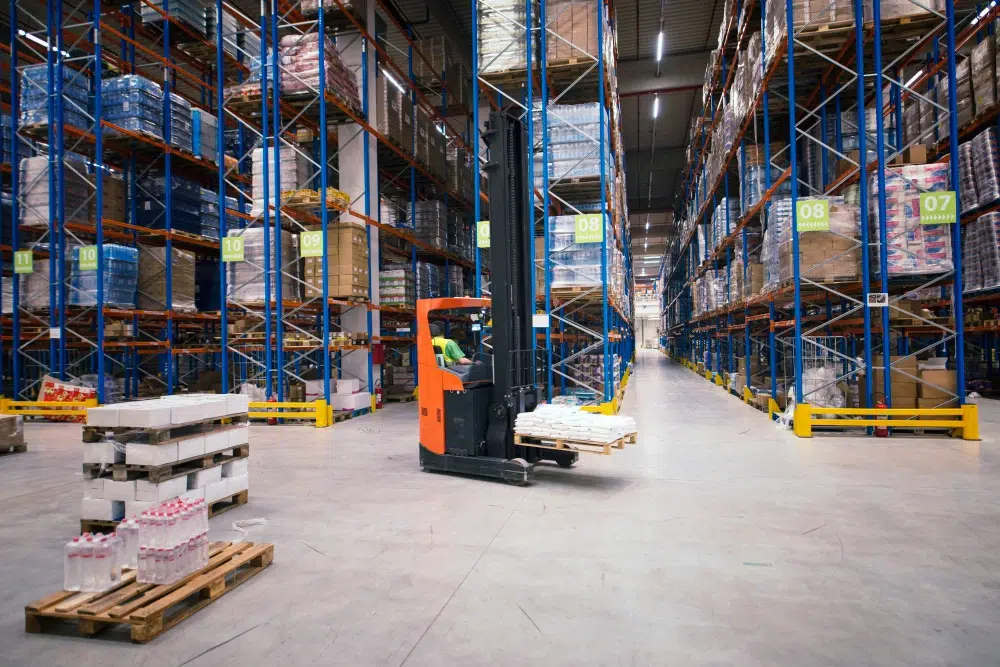
Common warehouse conditions that impact WiFi
- Metal racking: reflects and blocks signal, creating dead zones and “weird” coverage patterns.
- Inventory changes: a warehouse can “change shape” as pallets move and racks fill.
- Long aisles: require consistent coverage along travel paths.
- High ceilings: mounting height affects how signal spreads.
- Industrial parks: neighboring WiFi networks can cause interference.
Real-world scenario: A warehouse works fine in the morning. By afternoon, staging is full and trucks are loading. Suddenly scanners slow down. That can happen because the environment and device density changed, not because “the internet got worse.”
Why “more access points” is not always the answer
It’s tempting to fix WiFi by adding more access points. However, too many APs can create interference and roaming confusion. Therefore, the goal is the right placement and tuning, not the highest AP count.
What can go wrong when you add APs without a plan
- APs overlap too much and fight for airtime
- Devices connect to far APs (sticky clients)
- Roaming becomes unstable in aisle transitions
- Performance drops during peak operations
Common Mistakes: Beginner errors that cause warehouse WiFi problems
Designing for signal bars instead of workflow. Coverage must match where work happens.
Using office-style AP placement. Warehouses need aisle-focused coverage and controlled overlap.
Skipping wired checks. Weak uplinks or PoE issues can look like “bad WiFi.”
Testing with phones only. Scanners and voice devices behave differently.
Industrial wireless networking explained: what “good design” includes
Good warehouse WiFi is engineered. Therefore, it includes planning, tuning, and validation.
Best practices for warehouse WiFi design
- Start with workflows: docks, staging, packing, and high-velocity aisles first.
- Use wired backhaul: wire every access point whenever possible.
- Create a channel plan: reduce co-channel interference and instability.
- Tune transmit power: create predictable roaming boundaries.
- Validate with real devices: walk tests and forklift route tests during normal operations.
- Segment networks: separate operations from guest and general use traffic.
- Document everything: AP locations, switch ports, VLANs, and policies.
Tips: What to ask your team before upgrading warehouse WiFi
- Where do scanners fail most often (aisle numbers, docks, staging)?
- When do problems happen (shift change, wave release, end of day)?
- Which devices are most critical (scanner models, voice devices, forklifts)?
Industry standards (simple references that help beginners)
Warehouse WiFi is based on standards. In addition, standards help you compare vendors and set expectations.
- IEEE 802.11: the WiFi standard family (how wireless devices communicate).
- IEEE 802.3: Ethernet standards (wired networking that supports your WiFi).
- Structured cabling standards (ANSI/TIA): guidance for cabling quality and labeling.
FAQ: how warehouse WiFi works
Is warehouse WiFi the same as home WiFi?
No. Warehouses need stable roaming, predictable performance under load, and designs that account for racking, long aisles, and changing inventory. Home WiFi is not built for that.
Why do scanners disconnect when moving?
This is usually a roaming issue. Devices may stick to the wrong access point, or overlap between APs may be poorly tuned. Roaming validation with real devices is key.
What is the difference between a router and an access point?
A router (gateway) directs traffic and often handles security and internet access. An access point provides the wireless connection that devices use to join the network.
Do I need to wire access points in a warehouse?
In most cases, yes. Wired backhaul is more stable and avoids the performance penalties of wireless uplinks, especially during peak operations.
How do I know if my problem is WiFi or the internet?
Test a wired device on the same network. If wired is stable but wireless is not, the issue is likely WiFi design, interference, roaming, or AP backhaul.
Conclusion: warehouse WiFi works best when it’s designed for operations
Now you know how warehouse wifi works at a beginner level: access points connect mobile devices to the wired network, and roaming keeps devices connected as they move. The biggest takeaway is simple: warehouse WiFi is not just “internet.” It is operational infrastructure. When you design it around workflows, tune it for roaming, and validate it with real devices, you get fewer disconnects, fewer slowdowns, and more predictable uptime.
Want a Warehouse WiFi Setup That Your Team Can Trust?
We’ll assess your facility, explain what’s happening in plain language, and build a phased plan to improve coverage, roaming, and reliability—without overbuilding.
Call: 833-469-6373 or 516-606-3774
Text: 516-606-3774 or 772-200-2600
Email: hello@unifinerds.com | Visit: unifinerds.com
Free consultations • Phased implementation • Budget-friendly • Expert support